If anyone needs to know how to check if your Mac is charging, the best method is to check the battery status on the screen that shows different battery charging percentages, charging, and charging on hold. The battery percentage increases, which shows it is charging. If you are finding these indications do not exist, it means charging is affected. In this tutorial, we will learn about the Mac charging process and, if charging fails, learn how to fix it. So let’s get started
How to Know If Mac Is Charging
Some steps help to know about MAC charging.
Battery Indicator
First, check the battery icon or indicator on the Mac menu. When the charger pin is connected with the Mac, the battery symbol becomes active. That icon will show charging status and the charging process.
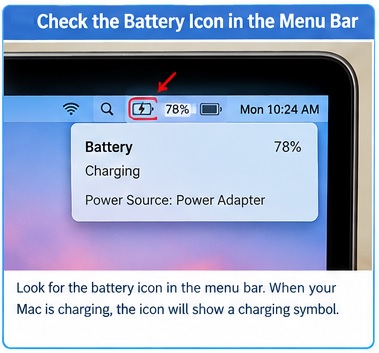
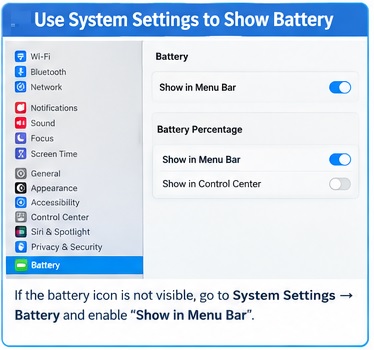
Some new models of macOS do not show the battery icon in the menu bar. You can find it through
Open System Settings ➙ Apple menu, Control Centre ➙ Battery.
Toggle➙ Show in Menu Bar.
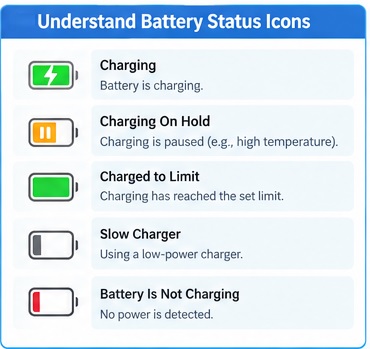
According to the Mac model, different options are shown on the battery sign, like
Charging
Charging On Hold
Charged to Limit
Slow Charger,
Battery Is Not Charging.
Charger LED Indicator
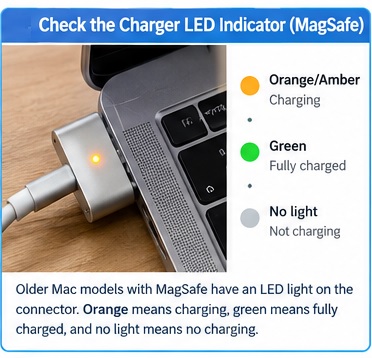
• The older version of Mac comes with MagSafe chargers, which have LED indicators for charging status. When connecting the MagSafe connector, the LED lights on. Three LED lights are normally shown.
When the Mac is charging, the orange or amber light shows
for fully charged, green color
When the charging process does not occur, no color is shown on the battery
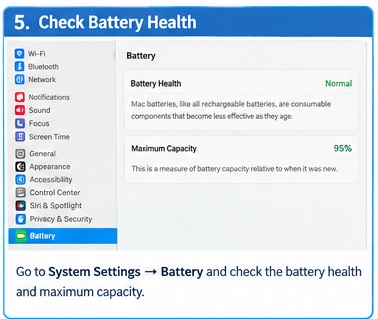
Check battery health.
During use, the Mac battery health can be easily monitored. with the following instructions
Open System Settings through the Apple menu.
In the left sidebar, click on the Battery section.
Check the battery symbol that shows the battery charging status and how much battery charge
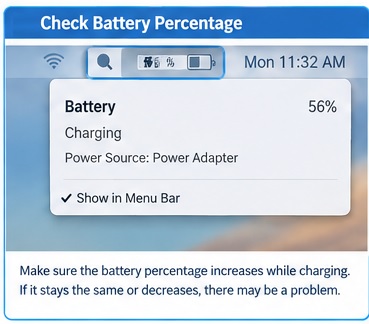
Check the battery percentage.
Another method for finding battery charging is to check that the battery percentage is increasing. if increasing, it means the battery is charging. If the number is not increasing, the Mac battery is not charging.
System Report
The System Report is also the best way to check Mac battery charging that provides details about the hardware and software of the Mac and also the connection.
To get this information, follow these steps.
Open the Apple Menu, and go to About This Mac.
Find System Report.
Click Power and check the charging information.
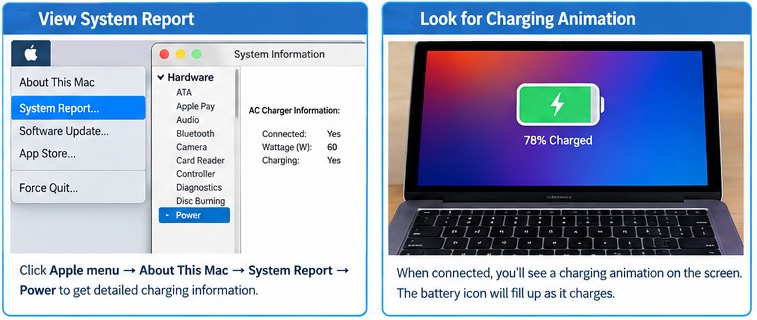
Charging animation
When the Mac is connected to a charger, a charging animation is shown on the screen. This sign shows the Mac is charging. During charging, the battery icon level increases.
MagSafe power adapter connection
If the Mac supports the MagSafe adapter, then it is easy to charge. Check the status with the LED indicator light, and plug in the connector. The light on the charger shows the battery charging process, like orange, green, or no color
What to do if your MacBook isn’t charging?
If the Mac is not charging and the battery percentage is also dropping, then follow these steps to find the reason.
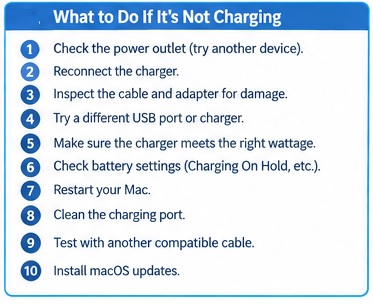
First, check if the power outlet is providing power or not; connect other devices to that outlet. If not, use another outlet.
Disconnect the power adapter from the outlet and reconnect it to start charging the Mac.
Now inspect the adapter or cable for bending or any damage that is affecting power flow to the Mac.
If your Mac has compatibility with many USB ports, connect the charger to another port. That helps to solve connection issues.
•The charger must fulfill MAC watt requirements so that it is supported. If a low-power charger is used, it does not provide power for normal charging if the Mac has a high load
Now check battery settings through System Settings > Battery; that gives different messages
- Charging On Hold
- Charged to Limit
- Slow Charger
- Battery Is Not Charging
- Now restart mac that ssolve power relevant faults. According to Apple guidelines, close for 30 seconds to start battery charging
- Ensure charing port clear not any external object is stuck in the port before charging connection clean it
- perform mac testing with a compatible charger and cable. if mac chager used different cable also causes trouble
- . Software updates are also important, so if mac start esily and see macos update. So, new software updates improve power transfer between the Mac and the power adapter.
Is MacBook Charging With MagSafe
MagSafe is a method that helps to know that MacBook chargers are in place without opening the Mac. For this, make a connection of the MagSafe cable to the MAC check the indicator on the connector.
- The amber light will be on; the battery is charging.
A green light means it is fully charged
The amber light is not always indicate battery charging but also shows charging paused or charge limit. So in that case, check battery status. MagSafe is used when the MacBook display is off since it helps to connect the connector. But it does not provide complete data; you have to check on the Battery menu.
IS Charging on a USB-C Mac
Some types of MacBooks also get charged with USB-C. To check USB-C charging to Mac, follow these points.
First, make the connection of the adapter to the outlet, then the USB-C charging cable to the adapter.
Other points of USB with Mac.
In the battery menu, check the battery charging percentage.
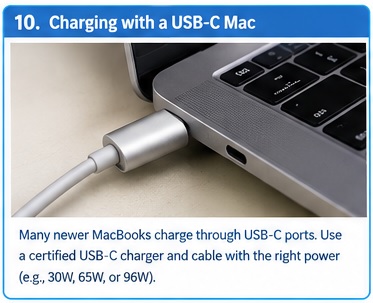
Features of USB-C cables
USB-C cables offer different charging features, such as data transmission but not charging, and some supported charging.
But for Mac charging, use a cable that is fully supported by Mac for proper charging. With that, also check the power adapter watts, so use an adapter that fulfills the MAC demand.
If charging is low, the Mac charging speed will slow
Why Is MacBook Plugged in But Not Charging?
In some conditions, the Mac is connected to the charger but not charging. There are some reasons
Low Battery Health
With time, battery health drops and causes low charging. So you must change the battery for fast speed if the older one is degrading fast.
Power adapter incompatible
If the power adapter is not supported or damaged, that causes the Mac not to charge. So the damaged adapter did not deliver the required power to the mac. So use a proper supporting charger.
macOS Battery Management
For longer battery life, the macOS battery health system stops charging at a certain limit, about 80 percent. So if this system is on, it stops battery charging after 80 percent. This setting can be adjusted; you can set a value but not charge 100 percent, which reduces battery life
Software errors
Different software errors also prevent charging. These can be solved by resetting the System Management Controller or updating macOS.
How Long Should Your Mac Battery Last?
| Mac Model | Battery Capacity | Wireless Web | Video Streaming | Maximum Battery Life |
| MacBook Air 13-inch M4 | 53.8 Wh | Up to 15 hours | Up to 18 hours | 18 hours |
| MacBook Air 15-inch M4 | 66.5 Wh | Up to 15 hours | Up to 18 hours | 18 hours |
| MacBook Pro 14-inch M4 | 72.4 Wh | Up to 16 hours | Up to 24 hours | 24 hours |
| MacBook Pro 14-inch M4 Pro | 72.4 Wh | Up to 14 hours | Up to 22 hours | 22 hours |
| MacBook Pro 14-inch M4 Max | 72.4 Wh | Up to 13 hours | Up to 18 hours | 18 hours |
How to Securely Charge Your MacBook
To save charging on your MacBook, follow these points.
Read more How To Fix if Mobile Device Is Stuck on T-Mobile EDGE?
Keep away from flammable surfaces.
Charge your MacBook on flat surfaces and keep it away from flammable surfaces to prevent overheating. not charge on surfaces where airflow is difficult, as it can cause a fire
Prevent Overheating
During charging, check the Mac’s heating; if it is overheating, disconnect the charger and let it cool. Since overheating damages the battery, it also reduces working life.
Use supported chargers.
Do not use incompatible chargers, since the charger is not supported, does not deliver proper charging, and affects the battery.
Mac Charging Indicator
| Charging Indicator | What You See | Charging Status |
| Charging | Battery sign with charging symbol | Charging |
| Charging On Hold | Battery status shows “Charging On Hold” | Temporarily paused |
| Charged to Limit | “Charged to [percentage] Limit” | Stopped at limit |
| Slow Charger | “Slow Charger” | Slow charging |
| Battery Is Not Charging | “Battery Is Not Charging” | Not charging |
| Battery Percentage Increasing | Example: 45% → 52% → 60% | Charging |
| Battery Percentage Decreasing | Example: 60% → 55% → 48% | Not effectively charging |
| MagSafe Amber/Orange LED | Amber/orange light on connector | Charging / on hold |
| MagSafe Green LED | Green light on connector | Fully charged |
| MagSafe No Light | No LED illumination | Check connection |
How do I make my MacBook battery health last longer?
Not a full-charge battery
Try avoiding fully charging the battery and charge in the middle ranges that reduces stress on battery cells and increases working life.
Keep apps updated.
Different software and apps: new versions come out, so update them since outdated software uses high power compared to new versions.
Low screen brightness
Reduces screen brightness since it reduces power usage of the MacBook. Set at a comfortable level that reduces charging load and increases battery life
Disconnect external devices.
Different external devices like USB drives use power, so disconnect them to save charging.
not charge in hot conditions
Heating affects working life. So charge in a cold place and keep it away from direct sunlight.
Compatible charger
Use a charger that supports the battery, since different chargers do not provide the required power for the battery
Frequently Asked Questions
Why is my Mac not charging while dead?
It can be due to the adapter not providing the required power due to a damaged cable or a blocked port due to dust. Use a different cable and adapter. If the Mac is still not working, perform a forced restart
Does the Mac light up when charging?
The older version of the Mac having MagSafe connectors has a glowing LED light during charging in amber and, when fully charged, green.
While MacBook Air models constructed after 2018 use USB-C and do not have an LED, so check the battery symbol in the menu.
How do I know if my MacBook is charging if it’s completely dead?
• The dead Mac does not give any response when the power button is pressed; there is no display on the screen, and the MagSafe LED does not work. After plugging in the charger, no response occurs; the fault can be with the adapter, cable, or other hardware fault
Is it safe to reset SMC on Mac?
Yes, safe on MacBooks with a T2 Security Chip (2018–2020 Intel models)
Press and hold the power button and release it.
Turn on mac if not fix again down again.
Now press and hold the right Shift, left Option, and left Control keys for 7 seconds.
Hold the keys pressed with the power button for another 7 seconds.
Leave all keys, wait a few seconds, and turn the Mac on
How to check if a MacBook battery needs replacing?
For this purpose, open System Settings, Battery > Battery Health. If there is “Service Recommended” or capacity reduced, replace it.
How to check if a MacBook is charging?
Press on the battery symbol in the menu bar and choose Battery. Check the charging or relevant status, and also check the battery percentage. If the status is “Charging On Hold” or “Charged to Limit,” that shows charging stopped
What color of MagSafe light shows Mac charging?
The amber MagSafe color shows the battery charging; the green light shows the battery fully charged. but must check the battery menu
What signs show a MacBook is charging when it’s off?
The connector light indicates charging for the MagSafe Mac; since the amber light shows charging or on hold, green shows fully charged. USB-C supported does not have an external charging indicator, so check macOS after the Mac starts; that provides the correct method
Why is my MacBook charging but not going up?
Mac showing a charging icon, but the battery level is not increasing due to low power from an improper charger, overheating errors, or a software glitch
What is the meaning of “Charging On Hold”?
It shows macOS is facing a charging delay for optimized battery charging. This feature manages time battery use for full charging. To charge fully instantly, use Charge to Full Now
Conclusion
To get an idea of whether the Mac is charging, check the battery status on the Mac. Mac comes with MagSafe; the connector light gives an indication like amber shows charging or on hold, and green means full charge. If the battery percentage is not rising, check the Mac’s charging settings, or it can be a power issue.